Organization Management
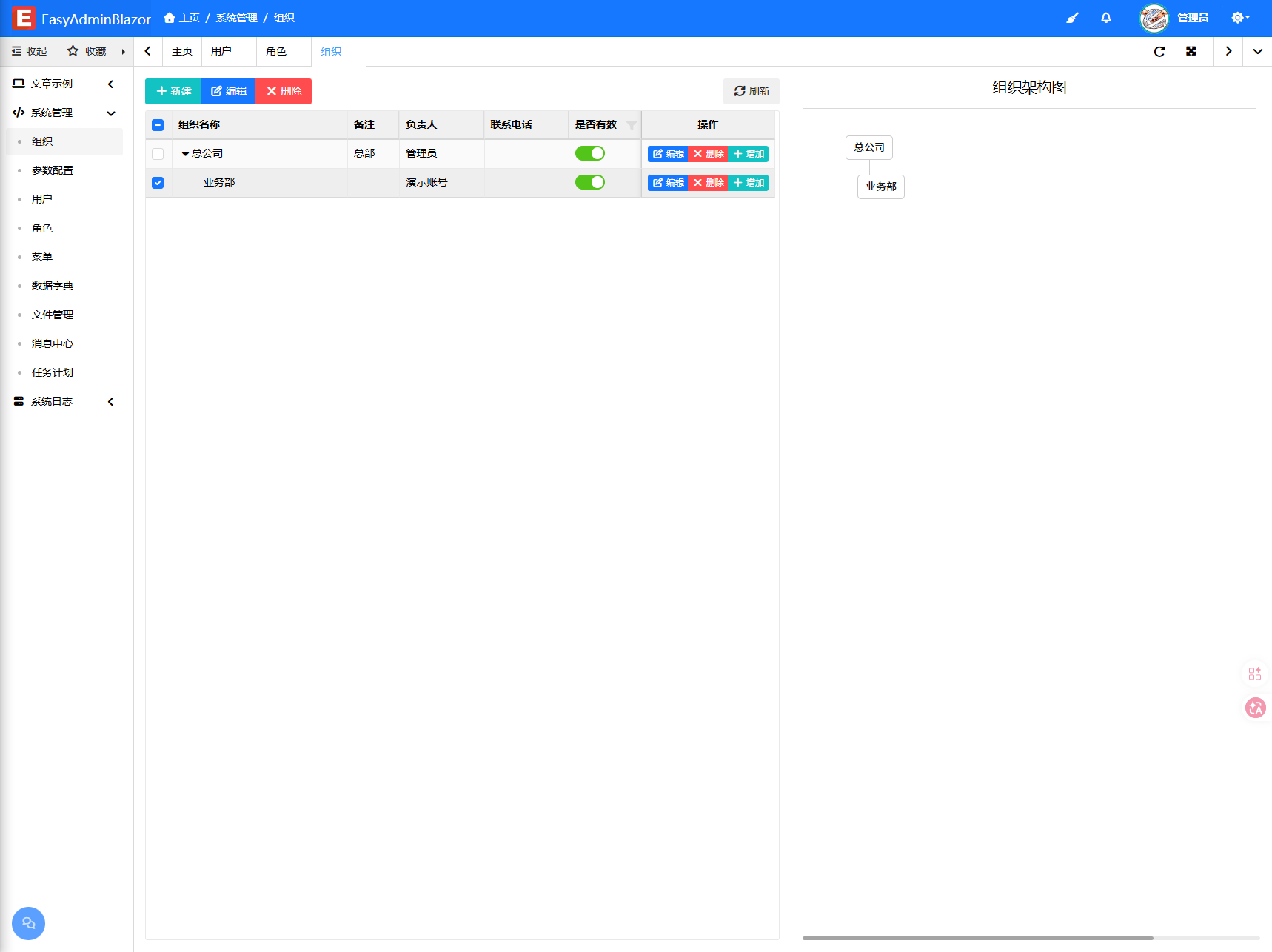
Overview
Organization management handles the company's departmental structure, displayed as a tree hierarchy. Administrators can create and adjust departments and assign a responsible person to each one. The organization tree is also the basis for data permissions: a user's department determines which data they can see.
Usage
Accessing the Organization Management Page
Navigate to "System Management" → "Organization Management" in the system navigation bar.
Viewing the Organization Tree
The page displays all departments in a tree table format. Expand/collapse nodes to view sub-departments. Each department node shows the department name, responsible person, sort order, and status.
Adding a Department
- Click the "Add" button above the list to open the department information entry window.
- Fill in the department name.
- Select the parent department (leave empty to create a top-level department).
- Select the responsible person (click the selector to open a user selection dialog).
- Set the sort order and whether it is enabled.
- Click "Save" to complete.
Editing a Department
- Find the target department and click the "Edit" button on that row.
- Modify the department information in the edit window.
- Click "Save" to update.
Deleting a Department
- Select the department(s) to delete (multiple selection allowed), and click the "Delete" button.
- If the department has sub-departments, the system will cascade delete all sub-departments. This operation is irreversible, so proceed with caution.
Enable/Disable
Click the enable/disable toggle on a department row to quickly switch the department's status. When disabled, the department and its sub-departments' related data may be restricted.
Interface Description
Toolbar
- Add: Add a new department
- Delete: Delete selected departments (including cascade deletion of sub-departments)
List Columns
- Name: Department name
- Responsible Person: Name of the department head
- Sort: Display order among sibling departments (lower numbers appear first)
- Status: Enable/Disable toggle
Organization Types, Owners and Chart
- Multiple organization types: group, company, department and supplier.
- Owner binding: bind an owner to an organization node so approval scenarios can resolve the right approver automatically.
- Organization chart: view reporting lines and member distribution graphically.
Related Entity
SysOrg — Organization entity, containing Name, ParentId, ResponsibleUser, IsEnabled, Sort and other fields.