Data Dictionary
Overview
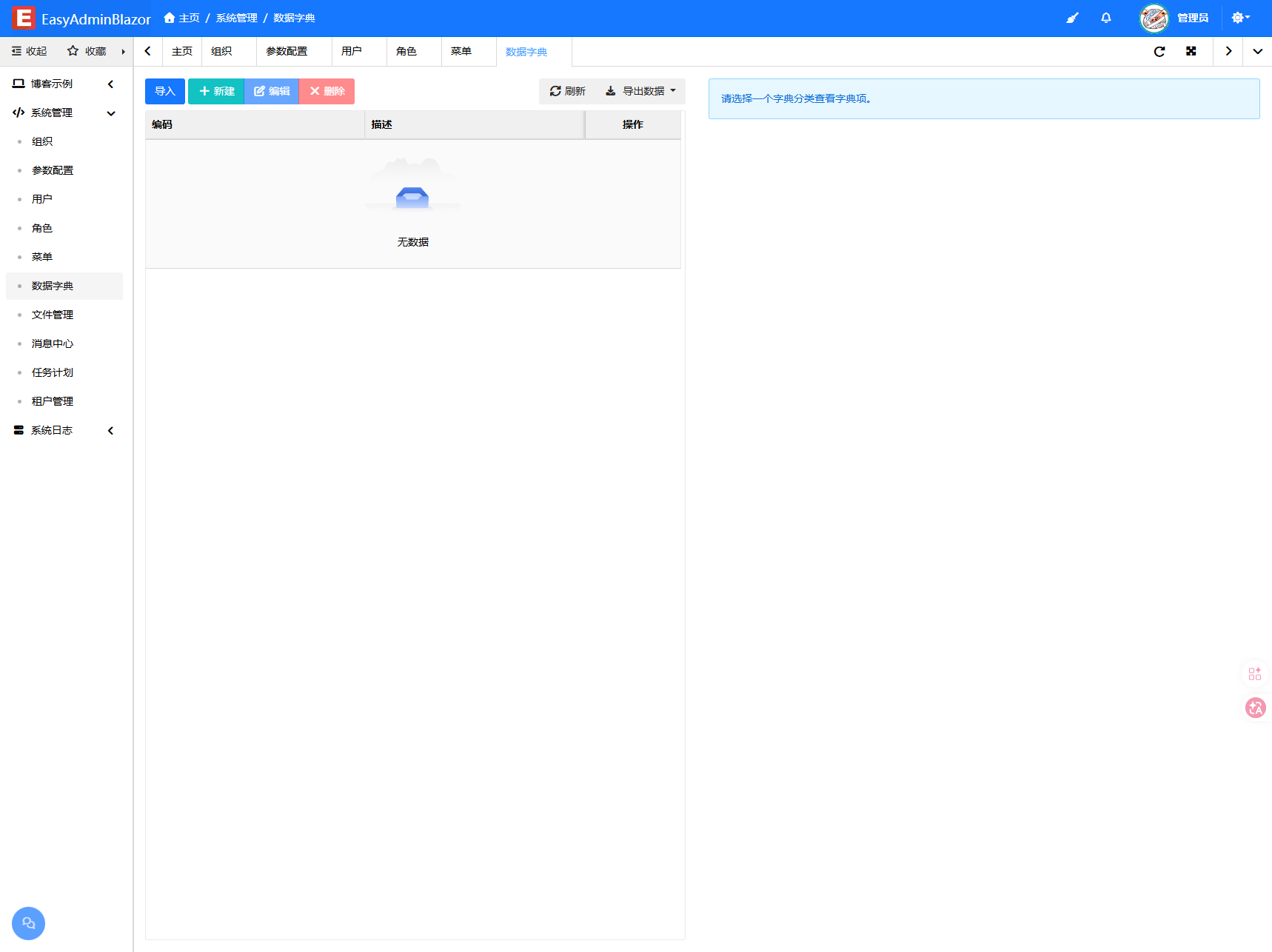
The Data Dictionary page manages dictionary data in two levels: the left side shows dictionary categories, the right side shows the items under the selected category. Dictionary items are a common source of options for dropdowns and multi-selects, for example order status, user type, or region.
Usage
Accessing the Data Dictionary Page
Navigate to "System Management" → "Data Dictionary" in the system navigation bar.
Managing Dictionary Categories
The left-side table displays all top-level dictionary categories:
- Add Category: Click the "Add" button on the left, enter the category name, value, and sort order
- Edit Category: Click the "Edit" button on a row to modify category information
- Delete Category: Select and delete a category, which will also delete all dictionary items under that category
Managing Dictionary Items
The right-side table displays all dictionary items under the currently selected category:
- Add Item: Click the "Add" button on the right, enter the item name, value (stored value), and sort order
- Edit Item: Click the "Edit" button on a row to modify the dictionary item
- Delete Item: Select and delete dictionary items
Import/Export
- Export: Export the current dictionary data as an Excel file
- Import: Upload an Excel file to batch import dictionary data, supporting both new and updated categories and items
Interface Description
Left Dictionary Categories
- Displays only top-level categories (
ParentId = 0) - Click a category row, and the right side automatically loads all dictionary items under that category
Right Dictionary Items
- Displays all items under the currently selected category
- Includes columns such as name, value, sort order, and status
Related Entity
SysDict — Dictionary entity, containing ParentId, Name, Value, Sort, IsEnabled and other fields