Role Management
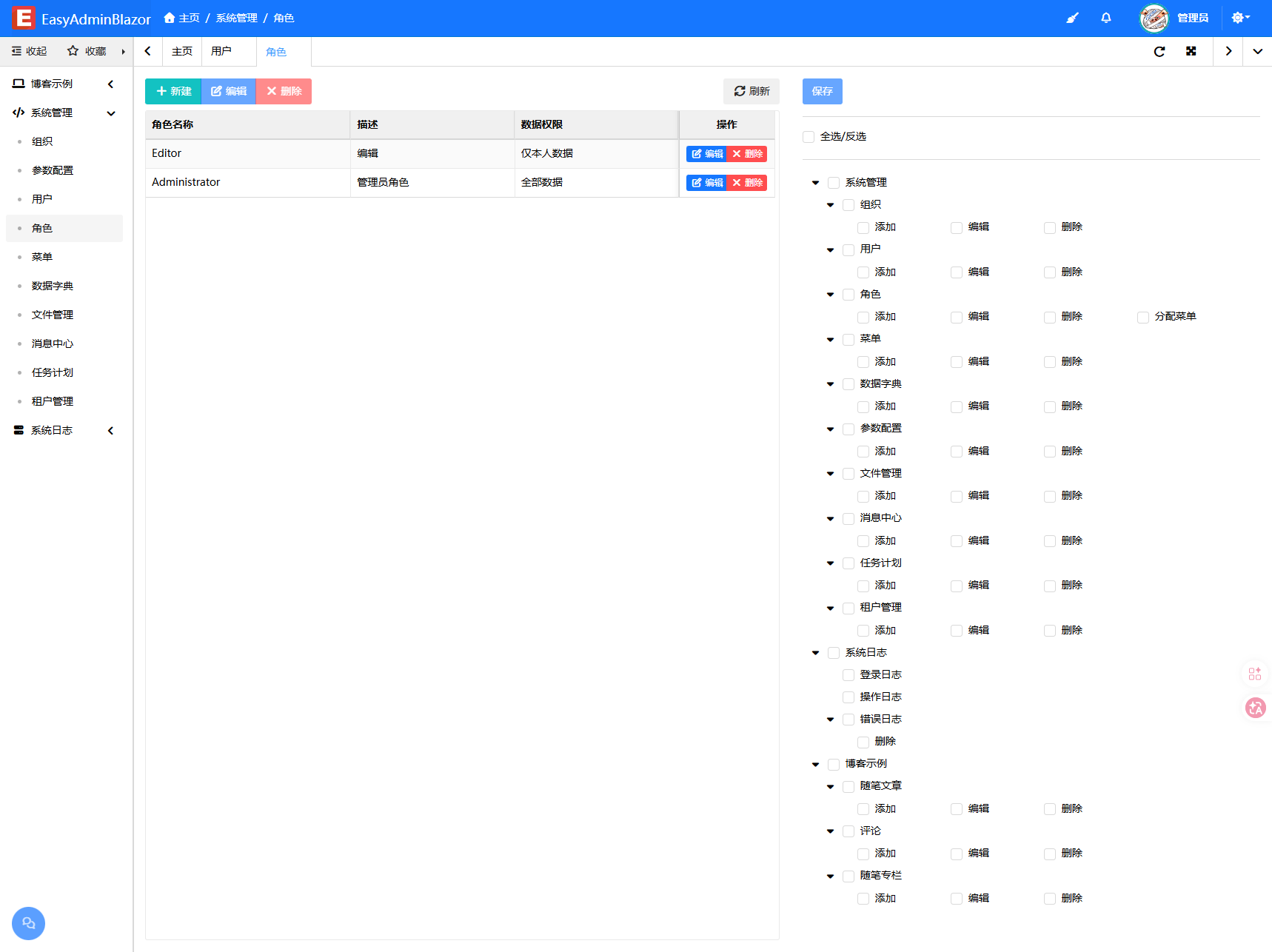
Overview
Role management defines roles and their permissions. A role is a collection of permissions; assigning a role to a user controls which functions that user can use and which data that user can see. A user can have multiple roles, and a role can be assigned to multiple users.
Usage
Accessing the Role Management Page
Navigate to "System Management" → "Role Management" in the system navigation bar.
Viewing the Role List
The page displays all roles in a table format, showing the role name, description, and administrator flag.
Adding a Role
- Click the "Add" button to open the edit window.
- Fill in the role name and description.
- If the role should have all permissions (unrestricted by menu permissions), check the "Administrator" flag.
- In the "Function Menu" tab, check the menus accessible to this role. Supports select all/deselect all, with child menus linked to parent menus.
- Click "Save" to complete.
Editing a Role
- Find the target role and click the "Edit" button.
- Modify the role information or adjust menu permissions.
- Click "Save".
Deleting a Role
- Select the role(s) to delete and click the "Delete" button.
- Administrator roles (
IsAdministrator = true) cannot be deleted. - After deleting a role, users with that role will lose the permissions granted by it.
Quick Menu Permission Assignment
Click on any role row in the list, and the system will automatically load the role's menu permission tree. You can adjust the selections directly in the list and save.
Check Rules of the Permission Tree
The permission tree has three levels: group → menu page → button. The check rules are implemented by the framework itself (they are not the component library's default parent/child cascading):
| Action | Result |
|---|---|
| Check a group | All menus and all buttons under that group are checked |
| Check a menu page | That page and all of its buttons are checked |
| Check a button | Its menu page and ancestor groups are checked as well (so the button stays reachable) |
| Uncheck a menu page | That page and all of its buttons are unchecked; if the group no longer has any checked menu, the group is unchecked too |
| Uncheck a button | Only that button is unchecked — the menu page and the group stay checked |
The last row is the important one: unchecking a button does not uncheck its menu. That makes it possible to build a read-only role (menu visible, page accessible, but no button can be pressed) — a typical fit for a query-only or reporting-only account.
Older versions relied on the component library's parent/child cascading, where unchecking a button also unchecked its parent. That made read-only roles impossible to configure, and opening a read-only role in the editor recalculated the already-saved menu permissions as unchecked, wiping them on save. The new rules fix both problems.
Interface Description
Role List
- Name: Role name
- Description: Role description
- Administrator: Whether it has all permissions
Edit Dialog
Contains two tabs:
- Basic Settings: Role name, description, administrator flag
- Function Menu:
AdminMenuTreemenu permission tree, check to assign permissions
Delete Protection for Referenced Roles
Before a role is deleted, the framework checks whether it is still referenced by users. If it is, deletion is blocked with a clear message, preventing accidental loss of user permissions.
Related Entity
SysRole— Role entity, containingName,Description,IsAdministrator,Menusand other fields