File Management
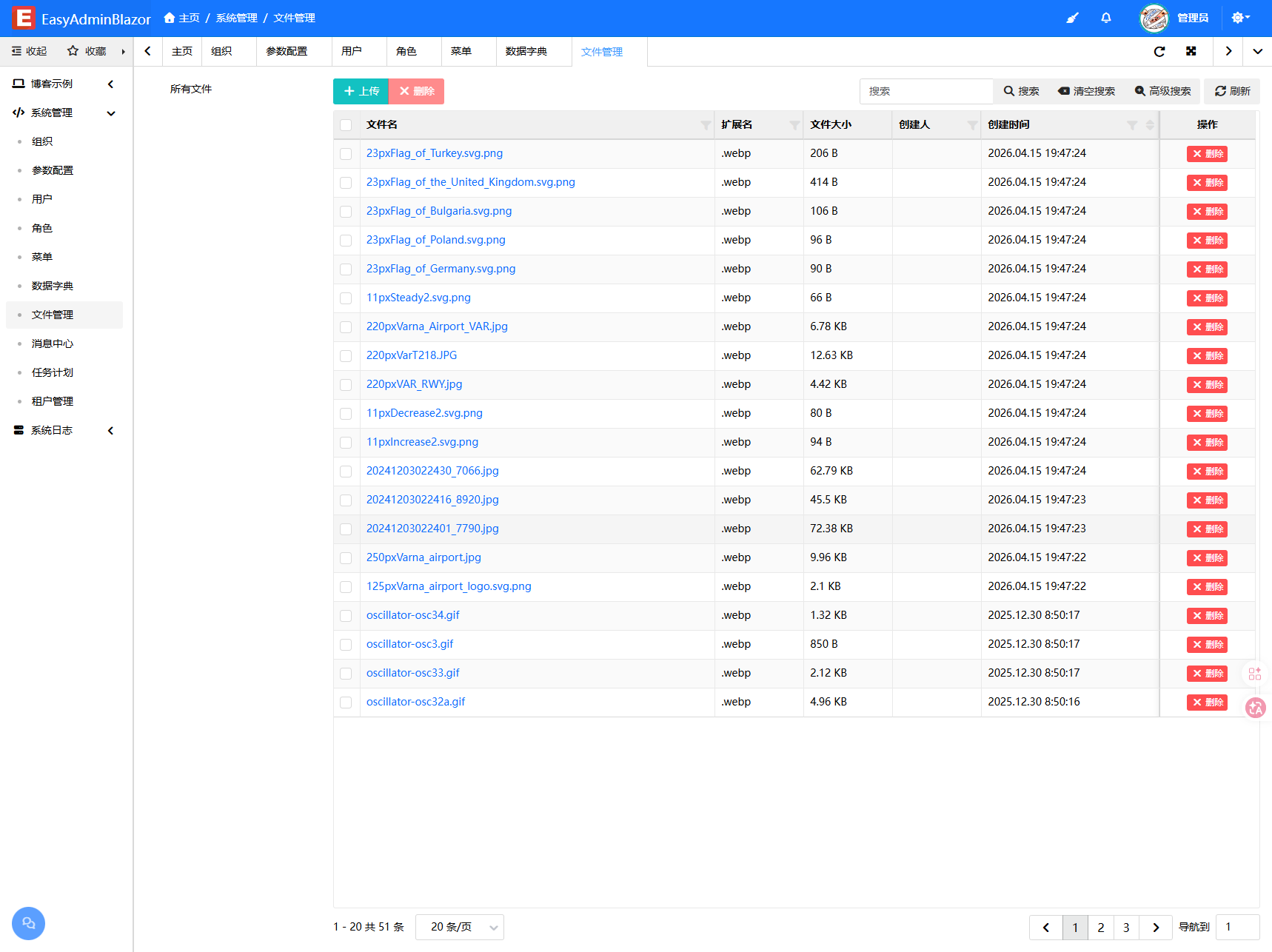
Overview
The File Management module is used to manage file resources in the system, supporting file upload, group management, image preview, WebP format conversion, and compression. Uploaded images are automatically validated; by default they are resized and converted to WebP to save storage space (with KeepOriginalFile=true, non-WebP originals are kept as-is without conversion or resizing; WebP originals are still resized and re-encoded when wider than the configured maximum). In multi-tenant mode, files are stored in directories segregated by tenant code for file isolation between tenants.
Usage
Accessing the File Management Page
Navigate to "System Management" → "File Management" in the system navigation bar.
Uploading Files
- Click the "Upload" button or drag files into the CardUpload area.
- Optionally select a file group (defaults to automatic archiving by date).
- The system automatically validates the file type (based on allowed/denied extensions configured in settings) and size (default 10MB).
- Upon successful upload, the file information is automatically added to the list.
Viewing and Managing Files
- List Display: file name, size, type, and upload time.
- Image Preview: Hover or click to preview images.
- Group Filtering: Click on a group in the left-side group tree to filter files in that group.
- Delete: Select files and click the "Delete" button.
File Grouping
- The system automatically groups files by date (configured via
FileSettings:DateTimeDirectory, defaultyyyy/MM/dd). - You can also manually select a group during upload.
- The left-side tree group navigation allows quick switching of file views.
Image Processing
Uploaded images automatically undergo the following processing:
- Format validation (via SkiaSharp to check if it's a valid image)
- Size compression (automatically scales down if exceeding the configured maximum width; skipped when
KeepOriginalFile=truefor non-WebP originals, while oversized WebP originals are still resized) - Format conversion (WebP by default; when
KeepOriginalFile=truea non-WebP original keeps its own format and no WebP is generated)
Multi-Tenant File Isolation
When multi-tenant is enabled, the file storage path is automatically prefixed with the tenant code: wwwroot/uploads/{tenantCode}/yyyy/MM/dd/.
Interface Description
Left Group Tree
- Displays all file group directories
- Click to filter the file list
Upload Area
- CardUpload card upload component
- Supports drag-and-drop upload and click selection
- Automatically displays upload progress
File List
- File Name: Original file name (with icon indicating file type)
- Size: Formatted file size
- Directory: Storage path
- Actions Column: Preview, Delete
File Access URL
Files are always accessed through the static URL that LinkUrl points to (SysFile.AccessUrl returns the same value). The framework does not provide an additional controlled-download endpoint — in other words, the upload directory itself is a publicly reachable static resource directory.
To control who can read uploaded files, restrict the upload directory at the web server / gateway level (for example a Nginx
locationwith authentication) instead of relying on an application-level endpoint.
Image Processing Limits
- By default uploaded images are compressed and converted to WebP; when
KeepOriginalFile=true, a non-WebP original is kept as-is with no WebP generation and no resizing (oversized WebP originals are still resized and re-encoded). FileSettings:MaxImagePixelscaps the total pixel count (width × height) of a single image (40 million by default, about 160MB of RGBA buffer);0disables the limit. Decoding allocateswidth × height × 4bytes in one go, so a few-hundred-KB highly compressed PNG can consume 2GB+ of memory and must be rejected before decoding.- When a WebP file is actually generated, the converted file name (
xxx.webp) is checked for uniqueness; on conflict a random suffix is appended so an existing file is never silently overwritten.
Group Name Restrictions
Group names go through the unified path service: path traversal (..), drive letters, UNC paths and illegal characters are rejected, as are Windows reserved device names (NUL, CON, COM1, …, including forms such as NUL.txt) — those names point at a device rather than a directory on Windows, so creating them directly throws a system-level exception.
Related Entities/Services
SysFile— File entityFileService— File upload, delete, and image processing serviceIConfiguration— Reads file configuration (allowed extensions, size limits, WebP quality, pixel cap, etc.)